Sometimes, pages display banners or overlays—such as cookie banners, subscription popups, etc.—that hide the pages’ main content. With Blitapp, you can hide these banners and overlays before taking a screenshot of the page.
We’ll go through a couple of examples to explain how to find the element to hide or click on and add it to your capture settings. If you find this post too complicated and aren’t sure how to hide elements for your captures, don’t hesitate to contact us for assistance.
Accept cookies
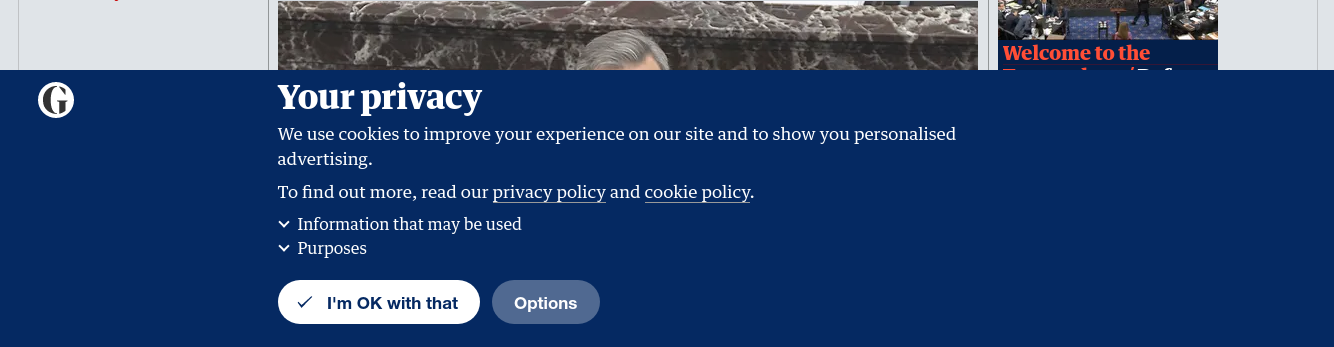
The news website The Guardian (https://www.theguardian.com/us) asks the user to accept cookies with a banner at the bottom of the page.
Blitapp used to take screenshots as JPEG files. When we took over Blitapp, we switched to better-quality PNG images. But these PNG files can be much larger, going over 15MB for a full-page screenshot.
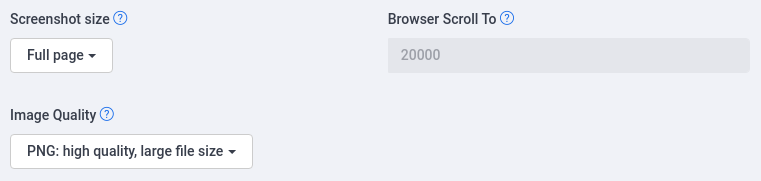
Now, you can choose between JPEG and PNG for all your captures. Click on Advanced Web Options, and you will find the new option *Image Quality” to switch between PNG and JPEG.
Here are a couple of examples to give you an idea of the file size and quality for both formats. You can open both images in new tabs to compare the quality:
Amazon product page, 1,280 x 7,941px
Instagram homepage, 1,280 x 10,830px
The difference in file size gets bigger as the screenshot size is bigger, but it also depends on how “busy” the web page is.
more...
We have added the ability to get notifications through webhooks every time a capture is complete. You can use webhooks to integrate Blitapp with many other services, such as Zapier.
more...